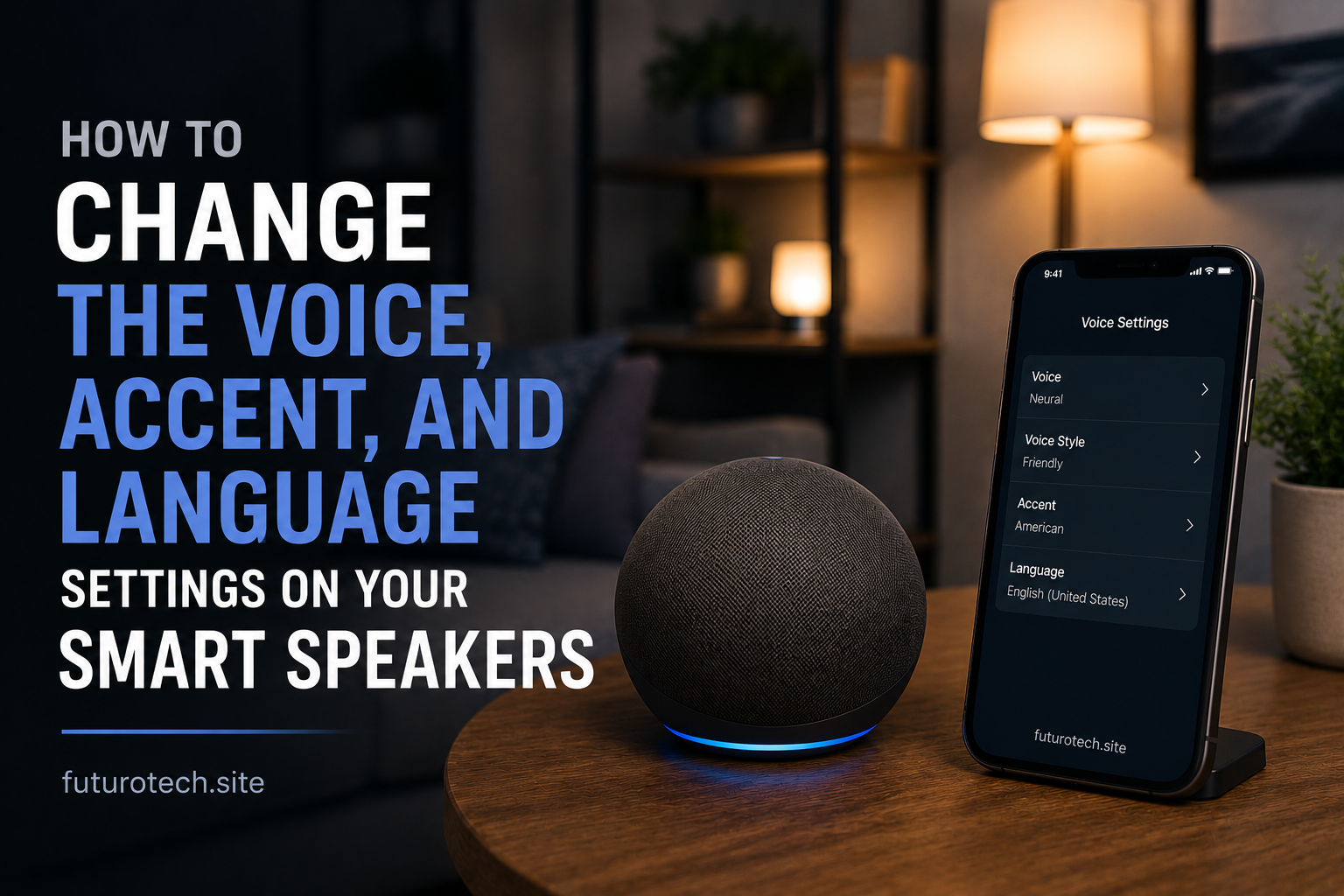
The First Time I Changed My Smart Speaker Voice, It Felt Like a Completely Different Device
It is funny how quickly we get used to the default settings on smart devices.
A smart speaker arrives, you plug it in, connect it, and the default voice becomes part of the background. After a while, you barely notice it.
Then one day you change the voice or language settings and suddenly it feels different.
Same device.
Different personality.
Changing the voice, accent, or language on a smart speaker is one of those small customizations that people overlook. But if you use the speaker every day for reminders, music, questions, and routines, the voice you hear actually matters more than you might expect.
Why Change Your Smart Speaker Voice Settings?
There are a few reasons people adjust these settings.
Sometimes it is simply preference.
Maybe you prefer a different accent or a voice that sounds more natural to you.
Other times it is practical:
- A household uses more than one language.
- Someone is learning a new language.
- The default accent is harder to understand.
- You want the device to match your region.
- You are tired of hearing the same voice every day.
Small changes can make a device feel much more personal.
Before Changing Anything, Check Which Smart Speaker Account You Are Using
This is a small detail that causes confusion.
Many smart speaker settings are connected to the account that manages the device.
Before changing voice or language options, check:
- Which account is signed in.
- Which speaker you are editing.
- Whether the changes apply to one device or all devices.
This matters especially in homes with multiple speakers.
Changing the kitchen speaker settings should not accidentally change every device in the house unless that is what you want.
Open the Smart Speaker Mobile App
Most voice settings are controlled through the companion mobile app.
The general process is usually:
- Open the smart speaker app.
- Select your device.
- Open settings.
- Find voice, assistant, or language options.
The exact menu names depend on your device brand, but the idea is usually the same.
You are looking for the section that controls how the assistant responds.
Change the Smart Speaker Voice
Many smart assistants offer different voice options.
Depending on the platform, you may be able to choose:
- Different voice styles.
- Different speaking tones.
- Different voice personalities.
After selecting a new voice, test it with a few normal commands.
Do not judge it only from the preview.
The way a voice sounds during a short sample can feel different from hearing it answer questions throughout the day.
Change the Accent or Regional Voice Option
Accent settings are usually connected to language and region.
Changing the region may affect:
- Pronunciation.
- Spelling.
- Available features.
- Local information responses.
For example, the assistant may pronounce certain words differently depending on the selected regional setting.
This can actually improve the experience if the default voice does not match how people in your home speak.
Switch the Smart Speaker Language
Changing the language can be useful for bilingual households or people practicing a new language.
A language change may affect:
- Voice responses.
- Recognition of commands.
- Available services.
- Displayed text in connected apps.
Before switching completely, check whether your speaker supports multiple languages at the same time.
Some devices allow multilingual use, while others require choosing one main language.
Set Up Multiple Languages If Your Speaker Supports It
For families that speak more than one language, multilingual settings can be extremely useful.
Instead of changing the language manually every time, the assistant can recognize commands in supported languages.
A good setup usually involves:
- Choosing supported languages.
- Testing common commands.
- Checking whether all users can interact comfortably.
It may take a little adjustment at first.
Smart assistants are getting better, but they are not always perfect with mixed languages or strong accents.
Train the Speaker to Understand Different Voices Better
If multiple people use the speaker, voice recognition settings can improve the experience.
Each person can create a voice profile so the assistant better understands who is speaking.
This helps with:
- Personal reminders.
- Individual preferences.
- Customized responses.
It is not magic, though.
Voice recognition can still make mistakes, especially with background noise or similar voices.
Fix Problems After Changing Voice Settings
The Speaker Does Not Recognize Commands
Try speaking clearly and checking whether the selected language matches the language you are using.
Sometimes the problem is not the microphone. It is simply a mismatch between settings and speech.
The Voice Did Not Change
Some devices require a restart or a little time to apply changes.
Try:
- Restarting the speaker.
- Closing and reopening the app.
- Checking for software updates.
The New Language Feels Confusing
Switching languages changes more than just the voice.
It can affect commands, menus, and connected services.
If something feels wrong, review the settings instead of assuming the device is broken.
Think About Who Uses the Speaker Most
The “best” voice setting is not always the newest or most interesting one.
It is the one everyone in the home can comfortably use.
A smart speaker should feel natural.
If someone constantly has to repeat themselves, the setup is not really working.
A Small Setting Change Can Make the Whole Device Feel Better
Changing a smart speaker voice is a tiny adjustment, but it changes the relationship you have with the device.
You hear it every day.
You interact with it constantly.
Making it match your preferences makes it feel less like a random gadget and more like something that belongs in your home.
The best smart home setups are usually not about adding more technology.
They are about making the technology fit the way you already live.