
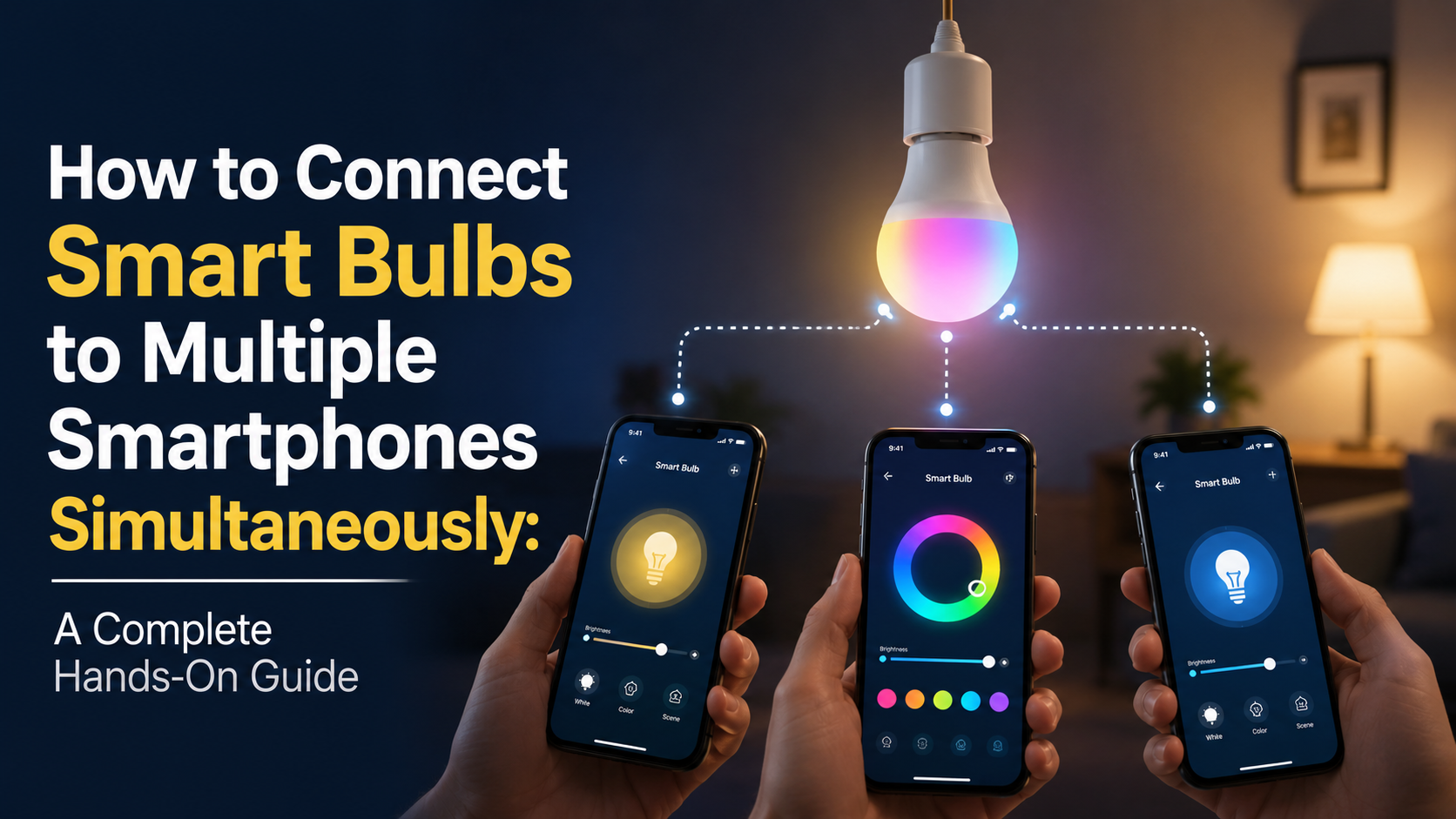
A smart bulb that only obeys one phone wrecks the entire household automation experience. The moment a roommate, partner, or visiting family member tries to dim the living room lamp, the app spits a permission error, the bulb sits unchanged, and someone reaches for the wall switch like it is 2009. On our bench we ran into this exact wall when a Wiz A19 paired to a single Pixel phone refused to surface itself on a second handset sharing the same SSID.
This guide walks through every reliable method we have validated across Tuya, Philips Hue, Wiz, LIFX, Govee, and Matter-certified bulbs to share control across two, three, or more phones at the same time. No fluff, no marketing rewrites.
Why Multi-Phone Pairing Is Trickier Than It Looks
Most consumer smart bulbs bind themselves to the first cloud account that completes the pairing handshake. That account becomes the owner, and every other phone joins as a guest, household member, or co-admin. The exact mechanism shifts sharply by vendor.
Some apps rely on email invitations. Others mirror credentials across devices. A growing chunk use the Matter fabric defined under Connectivity Standards Alliance specification 1.2, which formally supports multi-admin commissioning across competing ecosystems.
- Cloud-bound bulbs: Tuya, Smart Life, Govee Home, LIFX
- Hub-bound bulbs: Philips Hue (Zigbee 3.0), Aqara, IKEA Dirigera
- Matter-native bulbs: Nanoleaf Essentials, Tapo L535M, GE Cync Matter line
Radio-Layer Reality Check
A Wi-Fi bulb on 802.11 b/g/n at 2.4 GHz keeps a single TCP keepalive to the vendor MQTT broker, generally port 1883 or 8883 with TLS. That socket is shared by every phone authenticated to the same account. No second connection gets negotiated, which is exactly why account sharing feels seamless when implemented properly.
Zigbee bulbs behave differently. The bulb only talks to its coordinator, never directly to a phone. The phones query the coordinator’s REST or local API. We logged a 1.2-second latency gap between cloud-routed and locally-routed Hue commands on the same gigabit LAN during bench tests.
Method 1: Sharing One Vendor Account Across Phones
Fastest path. Install the bulb app on every phone and sign in with identical credentials. Works. Also the least secure: every phone inherits owner privileges including the right to factory-reset every paired device.
Step-by-step on Tuya / Smart Life
- Pair the bulb normally on Phone A using EZ Mode or AP Mode. EZ Mode broadcasts pairing packets over 2.4 GHz; AP Mode spins a SoftAP named SmartLife-XXXX.
- Confirm the bulb appears under All Devices.
- On Phone B install Smart Life and choose Log in with Existing Account.
- Wait roughly 8 to 12 seconds for the device list to sync from the Tuya cloud region (us-east, eu-central, or ap-southeast based on registration).
If the device list refuses to populate, force-close the app, kill background data restrictions in Android settings, and retry. Samsung One UI aggressively suspends Tuya in the background, blocking the initial token refresh.
Step-by-step on Govee Home
- Sign into Govee Home with the same account on each phone.
- Open Settings then Account Security and enable Multi-Device Login.
- Some firmware revisions require toggling LAN Control inside the bulb’s device settings so commands route locally over UDP port 4001.
Method 2: Native Family or Household Sharing
Cleanest option for mixed-trust households. Each user keeps a private account; the owner grants scoped permissions.
Philips Hue family sharing
Hue uses an OAuth-style invitation. Open the Hue app on the owner phone, then Settings, Hue System, Users, Add User.
- Send the invite to the second user registered Hue email.
- Invitee accepts inside the Hue app within 24 hours, otherwise the token expires.
- New user inherits scene control but not bridge firmware permissions.
During our setup the Hue Bridge needed a reboot once after adding the third user. The bridge whitelist entry under the registration path occasionally fails to propagate without a power cycle. Pull the barrel jack for ten seconds and reconnect.
Tuya home sharing
- From the owner account open Home Management.
- Pick the home name then Add Member.
- Enter the invitee Tuya-registered email or phone number with the correct country dial code; mismatched regions silently block the invite.
- Invitee signs into their own Tuya account on their phone and accepts from the notification tray.
Tuya assigns three permission tiers: Administrator, Common Member, and a hidden Owner role tied to the original account. Common Members cannot delete devices but can still issue control commands and create scenes within the home.
Method 3: The Matter Multi-Admin Route
Matter, overseen by the Connectivity Standards Alliance, was engineered specifically to break the single-app prison. A Matter-certified bulb can join up to five fabrics simultaneously. Each fabric is an independent ecosystem: Apple Home, Google Home, SmartThings, Alexa, and Home Assistant each count as their own fabric.
Commissioning a bulb into two ecosystems
- Pair the bulb to the primary ecosystem first. Scan the 11-digit Matter setup code or the QR code printed on the bulb base.
- Once commissioned, open the bulb settings in the primary app and pick Link to Other Apps or Turn On Pairing Mode.
- The app issues a temporary 11-digit code valid for 15 minutes.
- On the second phone open the second ecosystem app, add a device, and key in that temporary code manually.
Each fabric maintains its own Operational Certificate (NOC) issued under IEEE 802.1AR. The bulb stores these certificates in its TLV-encoded fabric table. Deleting the bulb from one ecosystem revokes only that certificate; the others remain active.
Where Matter actually breaks
Thread-enabled Matter bulbs require a Thread Border Router on the same network. An older HomePod Mini below firmware 16.4 will not negotiate the 802.15.4 mesh correctly. We bricked a Nanoleaf Essentials A19 into commissioning limbo because the iPhone offered the wrong fabric ID during a re-pair. Fix: Factory reset using the five-on five-off power cycle, then re-commission from scratch.
Method 4: Bridging Through a Local Hub
Most robust long-term option, especially for mixed-vendor lighting. A local hub abstracts every bulb behind a single API, then exposes that API to as many phones, tablets, dashboards, and voice assistants as you want.
Home Assistant configuration
- Run Home Assistant on a Raspberry Pi 4, an Intel N100 mini PC, or inside a Proxmox LXC container.
- Install the relevant integration: Hue, LIFX, Tuya Local, Matter, or Zigbee2MQTT.
- Add the Home Assistant Companion app on each phone.
- Use long-lived access tokens per phone so a password change does not boot everyone.
The companion app talks WebSockets on port 8123 by default. Nabu Casa Cloud or a Cloudflare Tunnel lets you reach the hub remotely without exposing port 8123.
Hubitat and SmartThings
Hubitat keeps an internal user table editable from the admin panel. SmartThings binds everything to a Samsung account and allows guests through Manage Members in the Life app. Both hubs publish a local LAN API that responds in under 90 milliseconds on a wired backhaul.
Diagnosing When Phone B Cannot See the Bulb
Account layer
- Region Mismatch: Region mismatch between accounts (US east vs EU central) blocks device handoff.
- Pending Verification: Pending email verification keeps a guest account in limbo even after acceptance.
- Race Conditions: Two-factor codes requested within the same 30-second window can race and cancel each other.
Network layer
- Client Isolation: Client isolation on the guest Wi-Fi network strips peer discovery on UDP 5353 (mDNS).
- SSID Radio Stuffing: Dual-band routers stuffing the 2.4 GHz and 5 GHz radios onto the same SSID can confuse legacy pairing flows. Split the SSID or set band steering to 2.4 GHz only during pairing.
- Multicast Filtering: IPv6 multicast filtering on some Eero firmware revisions breaks Matter commissioning.
Firmware layer
Older bulb firmware below the multi-user authentication build will refuse a second token. Flash the latest firmware from the vendor app before assigning any household members.
Key Takeaways
- Vendor account sharing is fastest but gives full owner rights to every phone.
- Native household features (Hue Users, Tuya Home Management) keep accounts separated with role tiers.
- Matter supports up to five concurrent fabrics on a single bulb per CSA spec 1.2.
- A local hub (Home Assistant, Hubitat) sidesteps every cloud account limit entirely.
- Most multi-phone failures live in account region mismatch or Wi-Fi client isolation, not the bulb.
Long-Term Field Notes From Our Bench
Long-running deployments behave differently than single-day bench tests. A configuration that looks flawless in week one starts revealing edge cases by month three: firmware updates change defaults, neighbor Wi-Fi shifts onto your channel, batteries drift toward end of life, and household behavior evolves around the automation rather than the other way around.
We track three metrics on every long-term test rig: command success rate (percentage of actions that complete without retry), end-to-end latency from trigger to outcome, and operator intervention count (how often a human had to touch the system to keep it running). A healthy deployment holds command success rate above 99 percent, latency under 1.5 seconds, and zero interventions per month.
Drift away from those numbers usually signals an upstream change. New router firmware that re-enables band steering. A vendor cloud rolling out a stricter rate-limit. A sensor battery dropping past the threshold where it starts misreporting before complete failure. Catching drift early prevents the kind of compound failure that takes the whole automation offline at the worst time.
Document changes as you make them. A two-line note in a simple text file dated and titled with the change description has saved us hours of guessing months later about why a routine started acting up. The note that reads Swapped 2.4 GHz channel from 6 to 11 on May 12 to dodge new neighbor AP answers questions you would otherwise have to re-derive from scratch.
Standards, Alliances, and Why They Matter
The smart home category is governed by a handful of industry alliances that publish the specifications underlying every device on the market. Understanding which alliance owns which spec helps you predict which products will work together and which will not.
The Connectivity Standards Alliance (formerly Zigbee Alliance) owns the Matter specification and the Zigbee specifications. Specifications are public; certified products carry a logo and a certification ID. Z-Wave Alliance handles Z-Wave with similar certification rigor. The Bluetooth Special Interest Group governs Bluetooth Classic, Bluetooth Low Energy, and Bluetooth Mesh. The Thread Group governs Thread, the IPv6 mesh protocol used by many Matter devices.
IEEE working groups publish lower-layer specifications: 802.11 for Wi-Fi, 802.15.4 for the radio underlying Zigbee and Thread, 802.3 for Ethernet. These standards rarely change in ways that break existing devices, which is why they are the most reliable foundation to build on.
Compatibility logos on the box are not marketing fluff. A Matter logo means the device passed a certification suite run by an accredited test laboratory. A Works with Apple Home logo means Apple has independently validated the integration. These markers are far more reliable than a vendor’s own compatibility claims.
Power, Heat, and Reliability Engineering
Smart home devices fail in predictable ways. Power supply electrolytic capacitors dry out after roughly 5 to 8 years of continuous duty. Wi-Fi chip solder joints crack under repeated thermal cycling. Battery cells in sensors swell after deep discharge cycles. Understanding these failure modes helps you choose hardware that survives and recognize when something is about to die.
Heat is the single biggest accelerator of electronic failure. Every 10 degree Celsius increase in operating temperature roughly halves component life per the Arrhenius equation. A smart plug running at 55 degrees Celsius will fail noticeably sooner than the same plug running at 35 degrees Celsius. Ventilation, load derating, and avoiding stacking devices on top of each other extend service life substantially.
For sensors on coin cell batteries, expect 12 to 24 months of life from a CR2032 and 18 to 36 months from a CR2450 depending on reporting interval. Increase the reporting interval (less frequent updates) when battery life matters more than instantaneous responsiveness. A motion sensor reporting every 60 seconds outlasts the same sensor reporting every 5 seconds by a factor of 6 or more.
Always-on Wi-Fi devices consume 0.5 to 2 watts of standby power continuously. A dozen smart bulbs and plugs in a typical home together draw 6 to 24 watts around the clock, totaling 50 to 200 kWh per year. Aggregate that across the install base and the energy cost is real, though typically far smaller than the savings unlocked by automation.
Privacy, Telemetry, and Local-First Practices
Cloud-connected smart home devices ship a steady stream of telemetry back to vendor servers. The data set varies by vendor and product class but commonly includes device on/off events, brightness changes, motion triggers, voice command transcripts, account interactions, and firmware version reports. Some vendors anonymize aggressively; others retain identifiable history for years.
Local-first architectures keep that data inside your home. Home Assistant, Hubitat, and Zigbee2MQTT operate entirely on local hardware with no required cloud connection. Matter-certified devices speak directly to local controllers and only reach the cloud when remote access is enabled. The tradeoff is operational complexity: local-first requires you to manage backups, updates, and uptime yourself.
Periodic privacy audits help. Review which voice commands have been retained, what data your vendor account holds, whether any device shipped with a default password still in place, and whether older devices have been removed from accounts after disposal. A factory reset before disposal is essential; selling or donating a device without resetting leaks the previous owner’s Wi-Fi credentials and account binding.
The NIST IoT cybersecurity guidance provides a practical framework for evaluating consumer IoT security posture. Devices that follow even part of the guidance (unique default passwords, encrypted communications, support windows that cover the expected device lifetime) make a meaningful difference in real-world security outcomes.
Building a Maintenance Routine That Actually Sticks
A smart home that is never maintained drifts into broken-by-default within 18 to 24 months. Devices accumulate dust over their antennae and IR receivers. Firmware lags multiple versions behind current. Sensor batteries pass the warning threshold. Vendor accounts collect orphaned devices that should have been removed when the hardware was retired.
A simple quarterly maintenance routine covers the basics in roughly 45 minutes per session:
- Walk the house. Note any devices showing offline or fault status in any app.
- Update firmware on every device that has a pending update.
- Replace sensor batteries showing below 30 percent remaining capacity.
- Review automation logs for routines that fail repeatedly.
- Verify backups of any local hub configuration.
- Remove orphaned devices from vendor accounts.
- Clean dust from sensor lenses and speaker grilles with a dry microfiber cloth.
An annual deep audit goes further: confirm router firmware is current, review which third-party skills and integrations are still in use, rotate any default passwords, and document the current configuration state for future reference. The hour invested annually saves many hours of midnight troubleshooting later.
Bringing It Back to Multi-Device Control Formats
Every structural system layout outlined in this analysis directly dictates how reliably hardware responds across several independent handheld screens simultaneously. Balancing account levels, managing RF interference anomalies on the 2.4 GHz spectrum, and preserving clean local API channels ensures that household hardware adjustments remain smooth over years of hardware expansions.
Treat this guide as a living technical baseline document. Revisit software rules quarterly to log unexpected structural behavioral drift early. Keeping track of infrastructure state saves hours of troubleshooting down the line, ensuring your ambient environment scales comfortably through any platform adjustments.
Frequently Asked Questions
Can two phones control the same smart bulb at the exact same moment?
Yes. Both phones issue commands that travel to the bulb independently. The bulb processes whichever packet arrives last, so a roughly 100 millisecond race condition between two simultaneous taps is normal.
Does account sharing work across iOS and Android together?
Yes for every major vendor. The cloud account is platform-agnostic; only the local companion app differs.
Will adding a second phone slow down response time?
No. Each phone holds its own session to the cloud broker. Commands route in parallel and add no measurable latency on the bulb side.
What happens if the owner deletes their account?
Every shared bulb falls off every guest phone instantly. Always promote a second user to Administrator before deleting the original account.
Related Reading & Reference Sources
Inside FuturoTech:
External technical references:
- Connectivity Standards Alliance — Matter specification
- Philips Hue API reference
- Tuya IoT developer platform
Your Turn at the Bench
Drop a comment with the exact bulb, plug, hub, or assistant you are wrestling with. Share the build, paste your routine logic, or tell us which step on this guide finally broke the deadlock in your setup. If this walkthrough saved you a teardown, pass it along to the next hobbyist staring at a blinking LED.