How to Connect Smart Bulbs to Multiple Smartphones Simultaneously: A Complete Hands-On Guide

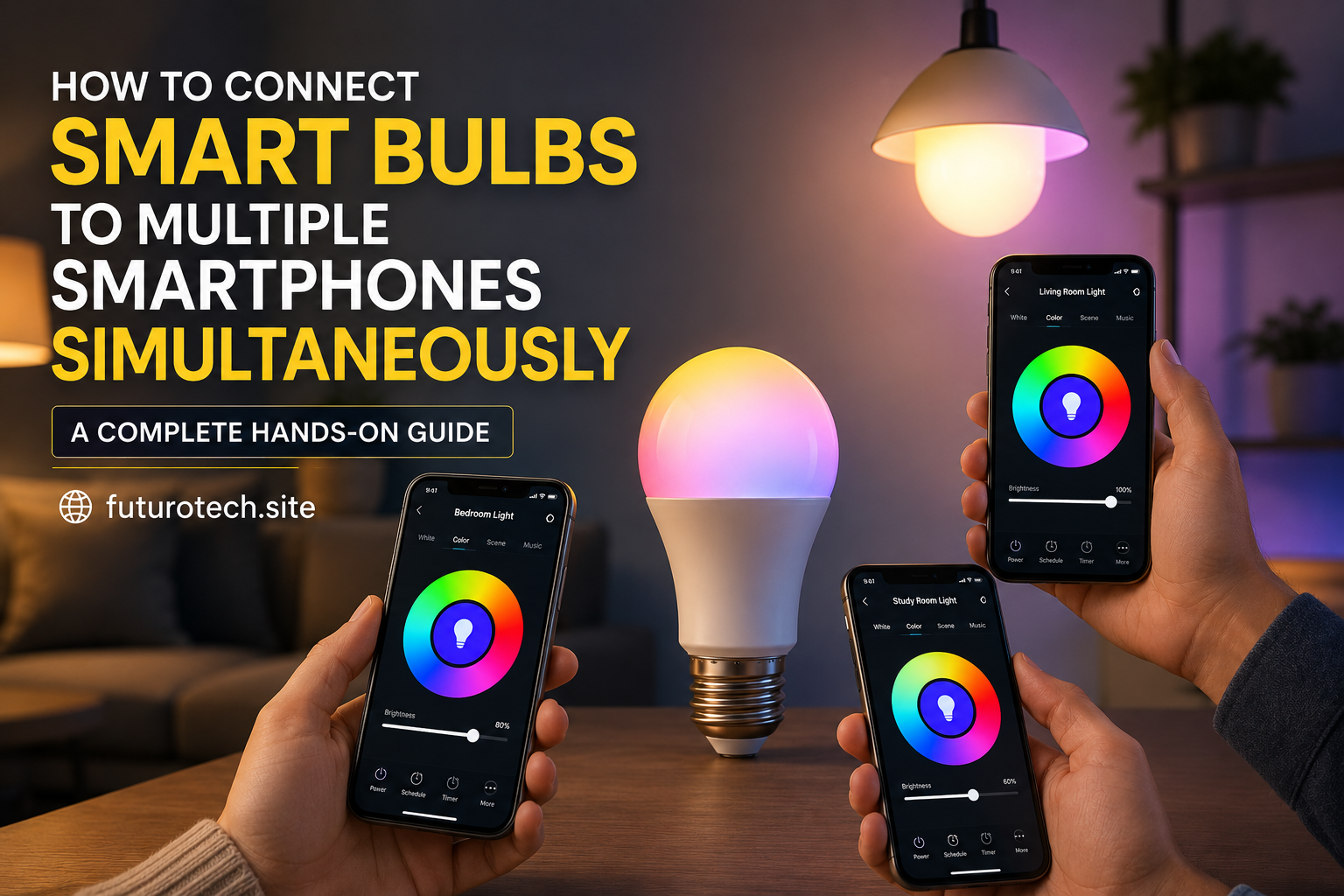
The Smart Bulb Problem Nobody Talks About
Smart bulbs are amazing when they work the way you imagine them.
You walk into a room, tap your phone, change the color, dim the lights, or tell your voice assistant to turn everything off.
Then someone else in the house tries to control the same bulb.
And suddenly the magic disappears.
The app says the device is already connected.
Someone gets logged out.
The bulb disappears from another phone.
It becomes a weird little smart home argument over a light bulb, which feels ridiculous but happens all the time.
The good news is that sharing smart bulbs between multiple smartphones is usually possible. The trick is understanding how your smart bulb system handles users, accounts, and permissions.
First Understand How Smart Bulb Sharing Actually Works
Most smart bulbs do not connect directly to every phone at the same time like Bluetooth headphones.
Instead, the bulb usually connects to:
- Your home Wi-Fi network.
- A smart home account.
- A manufacturer app or platform.
Your smartphones are then given access through that account or through device sharing features.
That is why the setup is different from simply pairing a device over Bluetooth.
The bulb is part of a small network, not just connected to one phone.
Set Up the Smart Bulb on the Main Smartphone First
The first phone usually becomes the device that completes the initial setup.
Start with:
- Install the smart bulb’s official mobile app.
- Create or sign into an account.
- Install the bulb physically.
- Turn on the power.
- Add the bulb inside the app.
- Connect it to your Wi-Fi network if required.
Take your time here.
A rushed first setup usually creates problems later.
Make sure the bulb works properly from the first phone before trying to add more users.
Use the App’s Built-In Sharing Feature
This is usually the cleanest way to connect multiple smartphones.
Many smart bulb apps include a sharing or home member feature.
The general process looks like this:
- Open the smart bulb app.
- Go to home or device settings.
- Select sharing or household members.
- Invite another person.
- Accept the invitation on the second smartphone.
The second phone then gets access without needing to completely set up the bulb again.
This is much better than repeatedly resetting the bulb and adding it over and over.
Decide Whether Everyone Should Use One Account
There are two common ways households handle this.
Option One: Shared Account
Everyone signs into the same smart bulb account.
The advantage:
- Simple setup.
- Everyone sees the same devices.
- No invitation process.
The downside:
- Everyone shares the same account details.
- Settings can accidentally get changed.
- Privacy is less organized.
Option Two: Individual Accounts With Sharing
Each person has their own login and receives access.
This is usually cleaner for families or shared homes.
People can manage their own settings without everyone using one password.
Connect the Second Smartphone Properly
On the second phone:
- Install the same smart bulb app.
- Create an account if needed.
- Accept the shared access invitation.
- Open the shared home or device list.
Avoid pressing “add new device” unless you are actually setting up a new bulb.
This is a common mistake.
People see the bulb and think they need to add it again, but that can create duplicate devices or setup conflicts.
Test Control From Both Phones
After sharing access, test basic features.
Try:
- Turning the bulb on and off.
- Changing brightness.
- Changing colors.
- Creating scenes.
- Running schedules.
You want to confirm both phones are controlling the same bulb, not creating separate versions of it.
Check Smart Home Platform Connections
Many people do not control bulbs only through the manufacturer’s app.
They also connect them to smart home platforms.
Examples include:
- Voice assistants.
- Smart displays.
- Home automation systems.
If multiple people use these systems, make sure everyone has the correct permissions there too.
A person might have access to the bulb app but still not be able to control it through the voice assistant.
Common Problems When Sharing Smart Bulbs
The Second Phone Cannot See the Bulb
Check:
- Both phones are using the correct account.
- The invitation was accepted.
- The bulb is online.
- The app is updated.
The Bulb Keeps Disconnecting
This is usually a network issue.
Try:
- Restarting the bulb.
- Restarting the router.
- Moving the bulb closer to Wi-Fi coverage.
Someone Changed My Settings
Shared control means shared responsibility.
If everyone can edit scenes and schedules, anyone can accidentally change something.
For larger households, separate permissions are usually better.
Give Each Room a Clear Name
This sounds like a small thing, but it saves frustration.
Instead of:
“Bulb 1”
“Device A”
“Light”
Use names like:
- Bedroom Lamp.
- Kitchen Ceiling.
- Living Room Lights.
When multiple people control the home, clear names prevent mistakes.
Remember That Smart Bulbs Need Constant Power
This catches many new smart bulb owners.
If someone turns off the wall switch, the bulb loses power.
No phone can control something that is physically disconnected.
Smart bulbs work best when the power stays on and the smart features handle the control.
A Shared Smart Bulb Setup Should Feel Invisible
The goal is not for everyone to become a smart home technician.
Nobody wants a complicated system where controlling a light requires a family meeting.
A good setup feels simple.
Everyone opens the app.
Everyone sees the lights.
Everyone controls what they need.
That is when smart lighting actually starts feeling smart.
The technology stays in the background, and the convenience becomes the thing you notice.