The Smart Bulb That Works Perfectly Until It Suddenly Doesn’t
There is nothing more annoying than a smart light bulb that decides to become “offline” at random times.
You install it.
The app connects.
The light responds.
Everything looks good.
Then a few days later, you open the app and see that dreaded message:
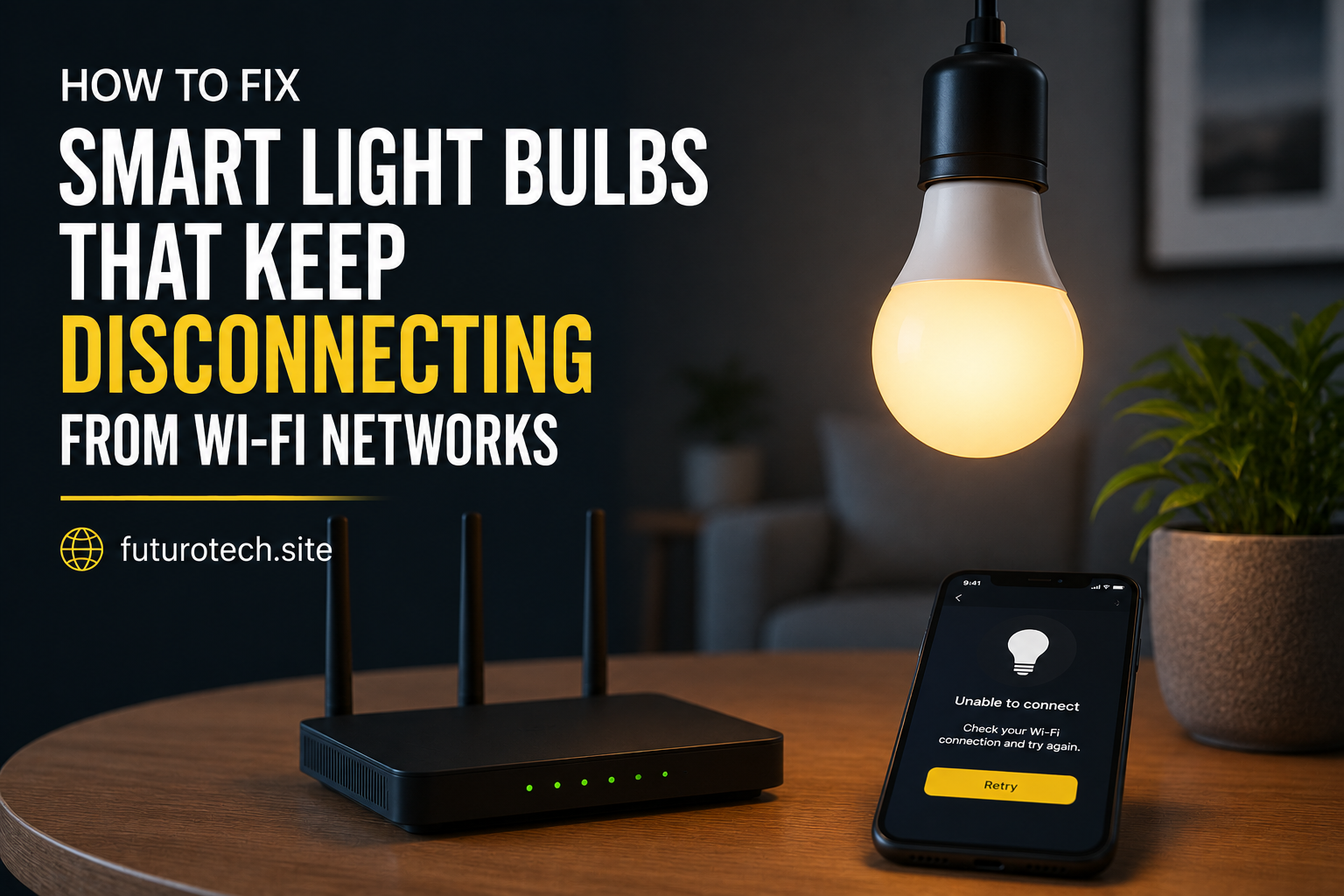
“Device unavailable.”
Now you are standing there turning the wall switch on and off like that is somehow going to convince the bulb to reconnect.
The good news is that Wi-Fi smart bulbs disconnect for a few common reasons. Most of the time, the fix is not complicated. It is usually something small hiding in your network setup, power connection, or device settings.
Start With the Simple Fixes First
Before changing router settings or resetting everything, try the boring stuff first.
It works more often than people expect.
- Turn the bulb off at the wall switch.
- Wait a few seconds.
- Turn it back on.
- Refresh the smart home app.
If the bulb reconnects immediately, you probably had a temporary communication issue.
Check If Your Wi-Fi Network Is the Real Problem
Smart bulbs are small devices, but they still depend on your Wi-Fi network.
If your internet feels unstable, your bulbs may disconnect too.
Check:
- Does your phone lose Wi-Fi too?
- Are other smart devices going offline?
- Is your router restarting?
If multiple devices are having problems, the bulb may not be the problem at all.
Make Sure Your Smart Bulb Is Using a 2.4 GHz Wi-Fi Network
This is one of the most common causes.
Many Wi-Fi smart bulbs work only with 2.4 GHz networks.
Modern routers often combine 2.4 GHz and 5 GHz networks under one name, which can sometimes confuse smart devices during setup.
If your bulb keeps failing to connect:
- Check your router settings.
- Try connecting through a 2.4 GHz network.
- Reconnect the bulb.
The exact steps depend on your router, but the idea is the same.
Move the Router Closer or Improve Coverage
A smart bulb inside a ceiling fixture or outdoor light may not get the same signal strength as your phone.
Your phone is powerful.
The tiny wireless chip inside a bulb is not.
Weak signal areas often cause random disconnects.
Try:
- Moving the router if possible.
- Adding a Wi-Fi extender.
- Using a mesh Wi-Fi system.
Avoid Putting Too Many Devices on a Weak Router
A lot of people forget that smart homes create network traffic.
One bulb is nothing.
But add:
- Smart plugs.
- Cameras.
- Speakers.
- Sensors.
- Multiple bulbs.
Suddenly your router is managing a lot more devices.
Older routers can struggle, especially in busy homes.
Check If Someone Turned Off the Physical Switch
This one sounds obvious, but it happens constantly.
Smart bulbs need constant power.
If someone uses the wall switch to turn the power off, the bulb is basically removed from the network.
The app may show it as offline because the bulb is not receiving electricity.
A simple habit helps:
Leave the wall switch on and control the bulb through the app or voice assistant.
Update the Smart Bulb Firmware
Manufacturers sometimes release updates that fix:
- Connection problems.
- Security issues.
- Performance bugs.
Open the bulb’s app and check for firmware updates.
A device that has been sitting untouched for months may simply need an update.
Restart Your Router
Routers are computers too.
They sometimes get stuck.
A quick restart can refresh connections and clear weird network behavior.
Unplug it.
Wait.
Plug it back in.
Give everything time to reconnect.
Remove and Reconnect the Bulb
If the bulb repeatedly disconnects, the connection profile may be corrupted.
Try:
- Remove the bulb from the app.
- Reset the bulb if required.
- Add it again as a new device.
This feels annoying because you already did the setup once, but sometimes starting fresh fixes the issue.
Factory Reset the Smart Bulb as a Last Step
A reset usually clears:
- Previous Wi-Fi details.
- Old account connections.
- Saved settings.
The reset process varies by brand.
Usually it involves turning the bulb on and off in a specific pattern.
Do not guess the pattern.
Check the instructions for your exact model.
Watch Out for Power Issues
Not every disconnect is a Wi-Fi problem.
Power interruptions can make bulbs lose connection.
Examples:
- Loose connections.
- Faulty fixtures.
- Power fluctuations.
- Outdoor weather exposure.
If the bulb frequently resets itself, the power source may need attention.
Consider Switching to a Different Smart Home Technology
If you have many smart lights and Wi-Fi keeps becoming unreliable, you may eventually prefer systems that use dedicated smart home networks.
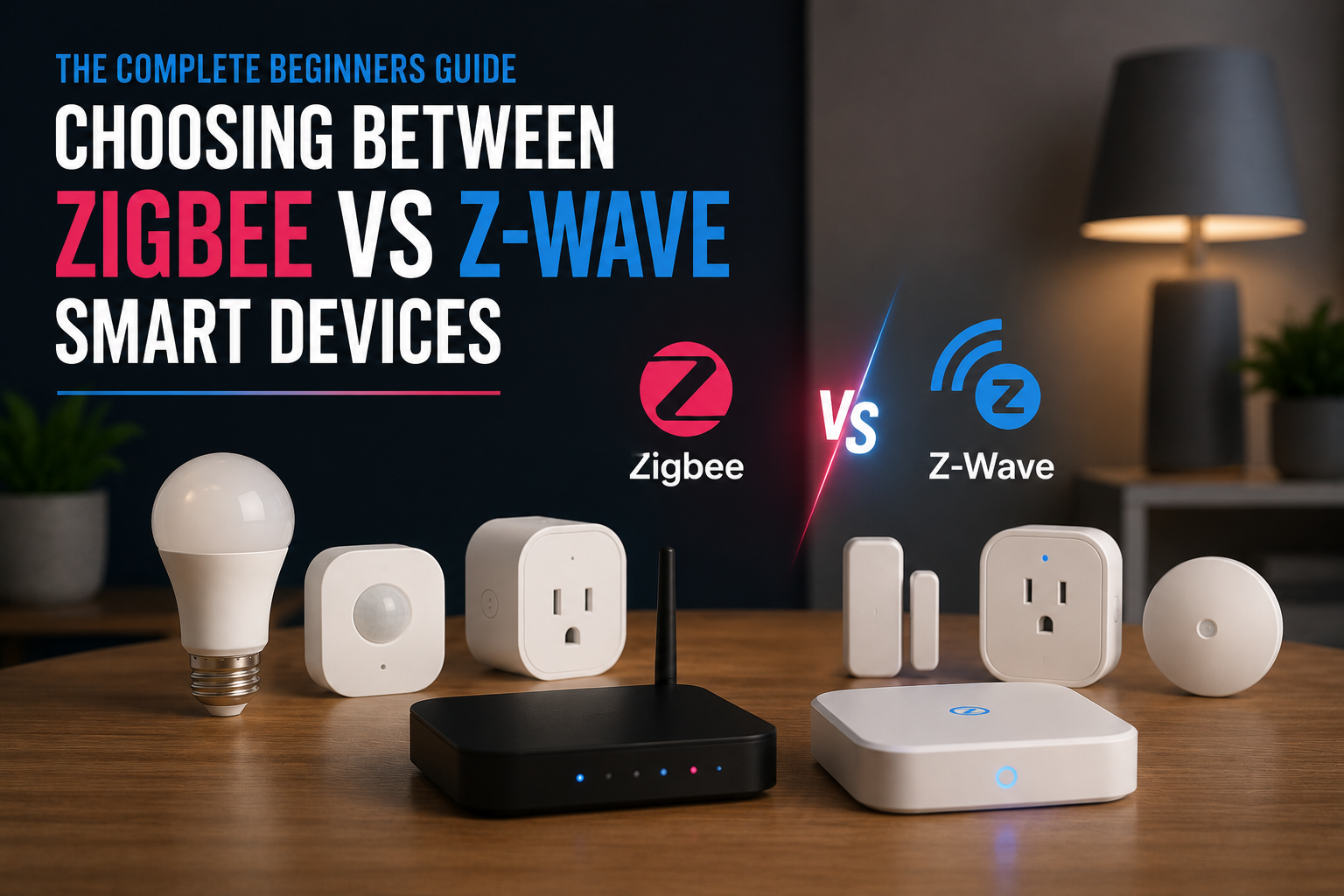
Technologies like Zigbee or Z-Wave can reduce the number of devices fighting for space on your Wi-Fi network.
They are especially useful for larger smart home setups.
Prevent Future Smart Bulb Disconnects
A few habits make a big difference:
- Use a reliable router.
- Keep firmware updated.
- Use strong Wi-Fi coverage.
- Choose compatible devices.
- Avoid constantly cutting power to smart bulbs.
A Smart Bulb Should Feel Like a Light, Not a Project
The whole reason people buy smart bulbs is convenience.
You want to tap a button and have the room respond.
You do not want to spend your evening reconnecting the same bulb over and over.
Once the network, power, and setup issues are sorted, most smart bulbs quietly do their job.
And honestly, that is exactly how smart home technology should feel.