
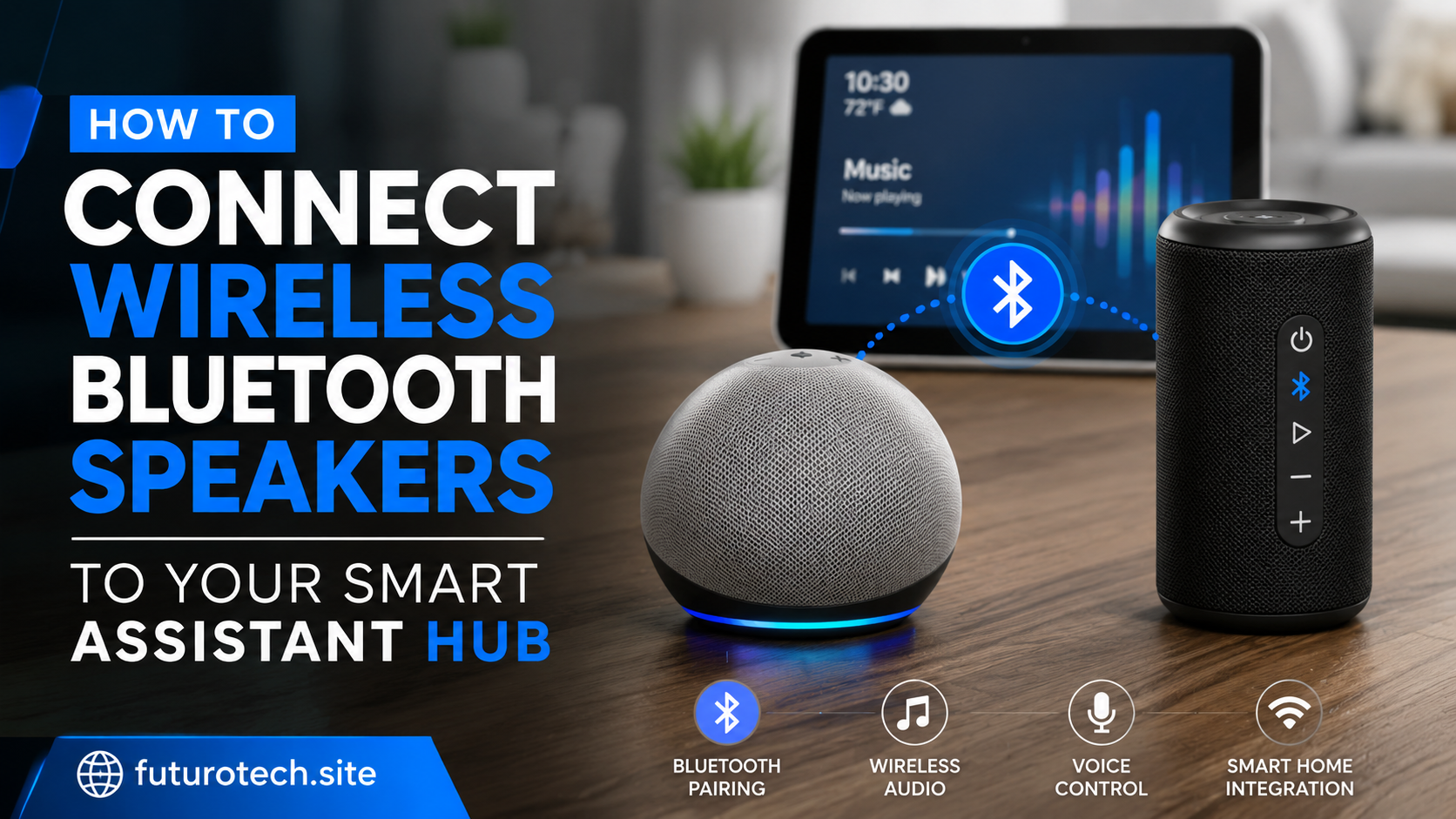
The Moment a Small Speaker Upgrade Changes the Whole Room
There is something slightly disappointing about buying a smart assistant hub and realizing the built-in speaker is only “fine.”
It works.
It answers questions.
It plays sounds.
But when you want music, podcasts, or something with a little more depth, the built-in speaker can feel limited.
That is where a wireless Bluetooth speaker can completely change the experience.
You keep the smart assistant features, but you give the audio a serious upgrade.
A better speaker. Better sound. Same voice control.
The setup is usually easier than people expect, although there are a few little details that can save you from the classic “why is nothing connecting?” frustration.
Understand How the Connection Works First
When you connect a Bluetooth speaker to a smart assistant hub, the smart hub usually acts as the brain while the Bluetooth speaker handles the sound output.
Your assistant still does the thinking:
- Answering questions.
- Running routines.
- Controlling smart devices.
- Starting music.
The Bluetooth speaker simply becomes the audio device.
Think of it like plugging better headphones into your phone. The phone stays in charge, but the sound comes from somewhere else.
Check Compatibility Before Pairing
Before trying to connect everything, check whether your smart assistant hub supports Bluetooth speaker connections.
Most modern smart assistant devices do, but not every model handles external speakers the same way.
You should confirm:
- The smart hub supports Bluetooth audio.
- The speaker supports standard Bluetooth pairing.
- Both devices are within range.
- The speaker is not already connected to another device.
That last one causes a surprising number of connection problems.
A speaker sitting in your living room might secretly still be connected to your phone from yesterday.
Put Your Bluetooth Speaker Into Pairing Mode
This is the first real step.
Turn on the Bluetooth speaker and activate pairing mode.
Usually this means:
- Pressing a Bluetooth button.
- Holding a power or pairing button.
- Waiting for a flashing indicator light.
The exact method depends on the speaker.
If the speaker is not discoverable, your smart assistant hub will not find it.
Open Your Smart Assistant App
Most smart assistant hubs are managed through a mobile app.
From there, look for device settings.
The general path is usually something like:
- Open the assistant app.
- Select your smart hub.
- Open audio or Bluetooth settings.
- Choose add or pair Bluetooth device.
The app should begin scanning for available speakers.
Select Your Wireless Speaker and Complete Pairing
When your speaker appears in the list, select it.
The smart hub should connect within a few moments.
After pairing, test it.
Play something simple:
- A short music track.
- A podcast.
- A voice response.
You want to confirm that sound is actually coming from the Bluetooth speaker, not the smart hub itself.
Set the Bluetooth Speaker as the Default Audio Output
This step is easy to forget.
Some smart assistant hubs connect to the Bluetooth speaker but do not automatically use it every time.
Check your device settings and look for options like:
- Default speaker.
- Preferred audio device.
- Playback output.
Setting this properly means you do not have to reconnect manually every time you want music.
Test Voice Commands After Setup
Now try normal everyday commands.
Ask the assistant to:
- Play music.
- Set a timer.
- Answer a question.
- Start a routine.
The goal is making sure the smart features still work normally.
The speaker upgrade should feel invisible.
You should not feel like you are managing a complicated audio system.
Fixing Common Bluetooth Connection Problems
The Smart Hub Cannot Find the Speaker
Try these:
- Turn Bluetooth off and back on.
- Restart both devices.
- Move the speaker closer.
- Make sure the speaker is in pairing mode.
Bluetooth problems are often fixed by simply forcing both devices to start fresh.
The Speaker Connects But No Sound Plays
Check the audio output settings.
The connection may exist, but the smart hub may still be using its internal speaker.
The Connection Keeps Dropping
Distance and interference matter.
Try keeping the speaker closer and reducing obstacles between the devices.
Think About Speaker Placement
A better speaker deserves a good location.
Avoid hiding it behind furniture or placing it somewhere that blocks the sound.
Good placement improves:
- Voice clarity.
- Music quality.
- Bluetooth reliability.
Sometimes moving a speaker a few feet makes a bigger difference than people expect.
Create Routines Around Your New Speaker Setup
Once the Bluetooth speaker works, you can build more useful routines.
Examples:
- Morning news through the better speaker.
- Evening music automatically starting.
- Relaxing sounds before bedtime.
- Whole-room audio during cleaning.
The speaker becomes part of your home instead of just another gadget sitting on a shelf.
Remember That Bluetooth Is Convenient, Not Perfect
Bluetooth is great for simple wireless audio, but it has limits.
It can have:
- Range limitations.
- Connection delays.
- Occasional pairing issues.
For everyday music and assistant use, it is usually more than enough.
For a complicated multi-room audio setup, dedicated systems may make more sense.
The Best Upgrade Is the One You Forget You Made
A smart assistant hub paired with a better Bluetooth speaker is one of those upgrades that does not need much attention after setup.
You ask for music.
The room fills with sound.
You ask a question.
The assistant responds normally.
Everything just works.
And that is usually the sign of a good smart home setup. The technology disappears, and the convenience is what you notice.

