How to Safely Reset an Unresponsive Smart Plug to Its Original Factory Default Settings

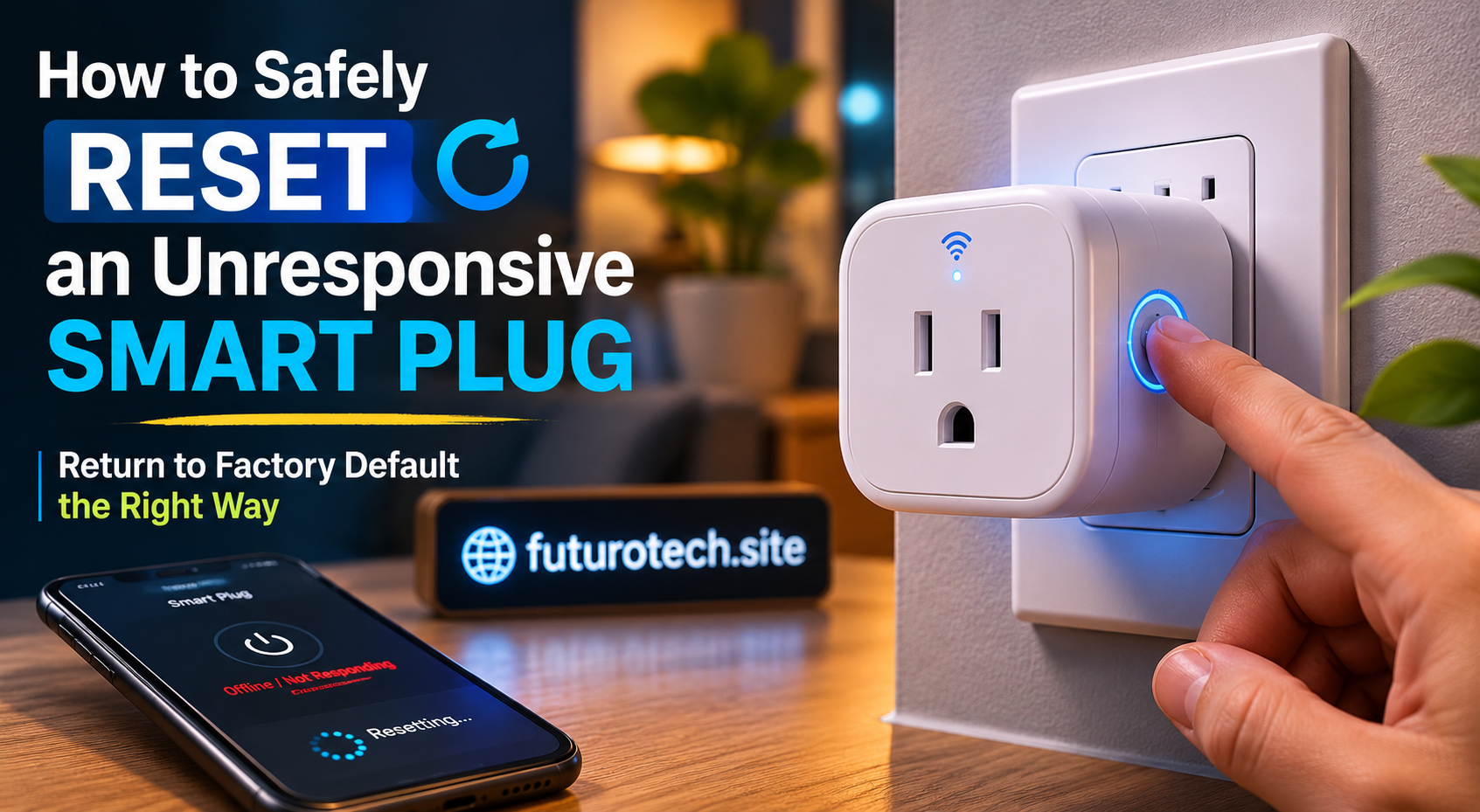
When a Smart Plug Stops Responding and You Start Questioning Everything
There is a frustrating moment every smart home owner eventually experiences.
You open the app, tap the smart plug, and nothing happens.
You try again.
Still nothing.
Then you start checking Wi-Fi, restarting apps, moving closer to the router, and doing all the little troubleshooting tricks you’ve collected over time.
Sometimes the problem is simple.
Sometimes the smart plug just needs a clean reset.
Resetting a smart plug back to its original factory settings sounds dramatic, but it is often the quickest way to recover a device that has become disconnected, stuck, or impossible to pair again.
The important part is doing it correctly.
A factory reset wipes the device’s saved settings, network information, and account connection. Afterward, the smart plug behaves like it just came out of the box.
Before Resetting, Try These Quick Fixes First
A factory reset should not be the very first thing you try.
Not because it is dangerous, but because it is inconvenient.
After resetting, you usually need to set everything up again.
Before going that far, check a few basics:
- Make sure the smart plug has power.
- Check whether your Wi-Fi network is working.
- Restart your router if other devices are also having problems.
- Close and reopen the smart home app.
- Try unplugging the smart plug for a few seconds.
- Check whether the device appears offline or completely missing.
Sometimes a simple power cycle fixes the issue without deleting your setup.
It’s always worth trying the easy stuff first.
What Happens When You Factory Reset a Smart Plug
A factory reset removes the information the smart plug has stored.
Usually, this includes:
- Your Wi-Fi connection details.
- Your smart home account link.
- Automation settings.
- Device name and room assignment.
- Custom schedules.
After the reset, the smart plug does not remember that it was ever connected to your home.
You will need to pair it again using the manufacturer’s setup process.
It is basically a fresh start.
Find the Physical Reset Button
Most smart plugs have a small button on the device itself.
It may be labeled:
- Reset.
- Power.
- On/Off.
- Pair.
The exact reset method depends on the brand, but many models use a similar approach:
- Keep the smart plug connected to power.
- Press and hold the reset button.
- Wait for the indicator light to change.
- Release the button when the reset signal appears.
The indicator light usually tells you what is happening.
A flashing light often means the device has entered pairing mode.
A solid light may indicate it is ready for setup.
Because reset procedures vary by model, checking the manufacturer’s instructions is always the safest option.
Do Not Confuse a Restart With a Factory Reset
This mistake happens a lot.
Restarting and resetting sound similar, but they do very different things.
A restart simply turns the device off and back on.
Your settings stay.
A factory reset erases stored information.
Think of it like restarting a computer versus deleting everything and reinstalling the operating system.
Both can solve problems, but they are definitely not the same.
How to Reset a Smart Plug Safely Step by Step
Once you’ve decided a reset is necessary, follow a clean process.
Step 1: Remove the Smart Plug From Automations
If possible, remove the plug from existing routines, schedules, or scenes before resetting.
This prevents old automation settings from causing confusion when you reconnect the device later.
Step 2: Perform the Physical Reset
Keep the smart plug powered.
Hold the reset button according to the manufacturer’s instructions until the light changes or the device indicates a reset.
Step 3: Wait for Pairing Mode
After resetting, the smart plug usually enters setup mode automatically.
This is when it becomes discoverable by the mobile application.
Step 4: Add the Device Again
Open the smart home app and start the setup process like you did the first time.
You will typically need to:
- Select the smart plug model.
- Connect it to Wi-Fi.
- Assign a room.
- Create a device name.
Common Problems After Resetting a Smart Plug
A reset usually solves the problem, but the setup afterward can sometimes have its own issues.
Here are common ones:
The Smart Plug Does Not Appear in the App
Make sure the plug is actually in pairing mode.
If the indicator light is not flashing, the reset may not have completed correctly.
The App Cannot Connect to Wi-Fi
Many smart plugs require a 2.4 GHz Wi-Fi network during setup.
If your router combines multiple network bands, check whether the device needs a separate connection.
The Plug Was Used With Another Account
Some devices remain linked to previous accounts.
If you purchased a used smart plug or changed accounts, you may need to remove the device from the previous setup before pairing again.
After Resetting, Rebuild Your Automations Slowly
This is the part people often rush.
The plug works again, so they immediately recreate every schedule and automation.
Then something breaks and they have no idea which setting caused it.
A better approach is adding things back gradually.
Start with:
- Basic on/off control.
- One simple schedule.
- One automation.
Once everything is stable, add more complexity.
It takes a little longer, but it saves a lot of frustration.
When Resetting Is Actually the Right Solution
A factory reset makes sense when:
- The smart plug refuses to connect.
- The device keeps disconnecting.
- The app cannot detect it.
- You changed routers.
- You are moving the device to a new home.
- You are giving it to someone else.
It is especially useful when a device has old network information stored that is preventing a fresh connection.
A Fresh Start Can Fix More Than You Expect
Smart plugs are simple devices, but they still rely on software, networks, and cloud connections. When those pieces stop communicating properly, things can get messy quickly.
A factory reset is not a magic button that fixes every possible problem, but it clears away a lot of hidden settings that may be causing trouble.
The key is treating it as a reset, not a panic button.
Do the quick checks first. Reset when needed. Reconnect carefully.
And before long, that little smart plug that was ignoring you five minutes ago is usually back to doing exactly what it was supposed to do.